
07 November 2012
Cooperative Thread Abort in .NET
Did you know that .NET uses a cooperative thread abort mechanism?
As someone coming from a C++ background I always thought that killing a thread is bad behavior and should be prevented at all costs. When you terminate a Win32 thread it can interrupt the thread in any state at every machine instruction so it may leave corrupted data structures behind.
A .NET thread cannot be terminated. Instead you can abort it. This is not just a naming issue, it is indeed a different behavior. If you call Abort() on a thread it will throw a ThreadAbortException in the aborted thread. All active catch and finally blocks will be executed before the thread gets terminated eventually. In theory, this allows the thread to do a proper cleanup. In reality this works only if every line of code is programmed in a way that it can handle a ThreadAbortException
in a proper way. And the first time you call 3rd-party code not under your control you are doomed.
Too make the situation more complex there are situations where throwing the ThreadAbortException is delayed. In versions prior to .NET 4.5 this was poorly documented but in the brand new documentation of the Thread.Abort method is very explicit about this. A thread cannot be aborted inside a catch or finally block or a static constructor (and probably not the initialization of static fields also) or any other constrained execution region.
Why is this important to you?
Well, if you are working in an ASP.NET/IIS environment the framework itself will call Abort() on threads which are executing too long. In this way the IIS can heal itself if some requests hit bad blocking code like endless loops, deadlocks or waiting on external requests. But if you were unlucky enough to implement your blocking code inside static constructors, catch or finally blocks your requests will hang forever in your worker process. It will look like the httpRuntime executionTimeout is not working and only a iisreset will cure the situation.
Download the CooperativeThreadAbortDemo sample application.
27 September 2012
Embed Url Links in TeamCity Build Logs
We at AutoScout24 are using TeamCity for our Continous Integration and Delivery. One step in our Release Pipeline is integration testing in different browsers. If our test framework detects a problems it will create a screenshot of the breaking page. This screenshot contains valuable information that helps our developers to quickly analyze the issue. As an example, our test servers are configured to send stack traces which are visible in the screenshots.
But it seams that there is no way to include links in TeamCity build logs. TeamCity correctly escapes all the output from test and build tools so it is not possible to get some html into the log. So I investigated TeamCity extension points. Writing a complete custom html report seemed to be overkill because the test reporting tab worked really well. Writing a UI plugin means to learn Java, JSP and so on and as a .NET company we don't want to fumble around with the Java technology stack. But as a web company we know how to hack javascript ;-)
There is already a TeamCity plugin called StaticUIExtensions that allows you to embedd static html fragments in TeamCity pages. And because a script tag is a valid html fragment we could inject javascript into TeamCity. So I wrote a few lines of javascript that scan the dom for urls and transforms them into links. With this technique you get clickable links in all the build logs.
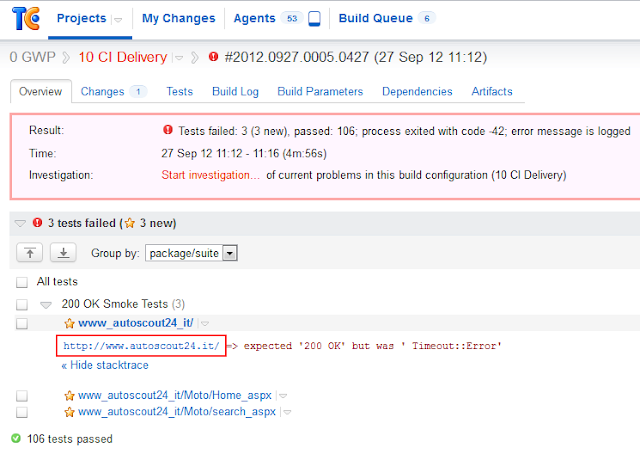
What you need to do:
Voila, Mission completed.
But it seams that there is no way to include links in TeamCity build logs. TeamCity correctly escapes all the output from test and build tools so it is not possible to get some html into the log. So I investigated TeamCity extension points. Writing a complete custom html report seemed to be overkill because the test reporting tab worked really well. Writing a UI plugin means to learn Java, JSP and so on and as a .NET company we don't want to fumble around with the Java technology stack. But as a web company we know how to hack javascript ;-)
There is already a TeamCity plugin called StaticUIExtensions that allows you to embedd static html fragments in TeamCity pages. And because a script tag is a valid html fragment we could inject javascript into TeamCity. So I wrote a few lines of javascript that scan the dom for urls and transforms them into links. With this technique you get clickable links in all the build logs.

What you need to do:
- Install StaticUIExtensions
- On your TeamCity server, open your "server\config\_static_ui_extensions" folder
- Open static-ui-extensions.xml
- Add a new rule that inserts "show-link.html" into every page that starts with "viewLog.html"
<rule html-file="show-link.html" place-id="BEFORE_CONTENT"> <url starts="viewLog.html" /> </rule> - Create a new file "show-link.html" with this content:
<script>
  (function ($) {
    var regex = /url\((.*)\)/g

    function createLinksFromUrls() {
      $("div .fullStacktrace, div .msg").each(function () {
        var div = $(this);
        var oldHtml = div.html();
        var newHtml = oldHtml.replace(regex, "<a href='$1' target='_blank'>$1</a>");
        if (oldHtml !== newHtml) div.html(newHtml);
      });
    }

    $(document).ready(createLinksFromUrls);
    $(document).click(function () {
        window.setTimeout(createLinksFromUrls, 50);
        window.setTimeout(createLinksFromUrls, 100);
        window.setTimeout(createLinksFromUrls, 500);
    });
})(window.jQuery);
</script>
Voila, Mission completed.
10 August 2012
"Right" vs "Simple"
Compare these two Software Design philosophies:
MIT
- Simplicity
- The design must be simple, both in implementation and interface. It is more important for the interface to be simple than the implementation.
- Correctness
- Correctness-the design must be correct in all observable aspects. Incorrectness is simply not allowed.
- Consistency
- The design must not be inconsistent. A design is allowed to be slightly less simple and less complete to avoid inconsistency. Consistency is as important as correctness.
- Completeness
- The design must cover as many important situations as is practical. All reasonably expected cases must be covered. Simplicity is not allowed to overly reduce completeness.
New Jersey
- Simplicity
- The design must be simple, both in implementation and interface. It is more important for the implementation to be simple than the interface. Simplicity is the most important consideration in a design.
- Correctness
- The design must be correct in all observable aspects. It is slightly better to be simple than correct.
- Consistency
- The design must not be overly inconsistent. Consistency can be sacrificed for simplicity in some cases, but it is better to drop those parts of the design that deal with less common circumstances than to introduce either implementational complexity or inconsistency.
- Completeness
- The design must cover as many important situations as is practical. All reasonably expected cases should be covered. Completeness can be sacrificed in favor of any other quality. In fact, completeness must sacrificed whenever implementation simplicity is jeopardized. Consistency can be sacrificed to achieve completeness if simplicity is retained; especially worthless is consistency of interface.
17 June 2012
Visualizing a code repository with Bubble Charts and Circle Packing
German Version - English Version
Vor einiger Zeit bin ich über die freie Javascript Library d3.js gestolpert, die zur Visualisierung und Animation von Daten in Webseiten dient. Da Datenvisualisierung eines meiner Hobbies ist und ich mich beruflich auch etwas mit Javascript beschäftige, lag es nahe sich dieses d3 etwas näher anzuschauen. Und es sollte sich lohnen, d3 rockt! Wirklich! Mit sehr wenig Aufwand, etwas Svg und Javascript hatte ich in einigen Stunden eine beeindruckende Visualisierung der Struktur eines sehr großen Source Code Repositories. Das Layouting und Rendering erledigt ein moderner Browser (IE9, Chrome, Safari oder Firefox) in wenigen Millisekunden. Ähnliches mit z.B. Graphviz und WPF als Rendering Engine zu implementieren wäre sehr viel aufwendiger, langsamer und unansehnlicher gewesen. Und da d3 im Browser läuft, ist die Visualisierung gleich plattformübergreifend verfügbar. Begeistert von den ersten Ergebnissen habe ich ausgehend von der ersten Spielerei gleich einige reale Probleme visualisiert.
So sieht's heute aus:

Mein Arbeitgeber betreibt eine Website auf Basis von .NET und C#, an deren Entwicklung und Wartung sieben Teams seit einigen Jahren beteiligt sind. Dementsprechend viele Projekte gibt es im Repository. Große Projekte, kleine Projekte, wiederverwendete Projekte, exotische Projekte, tote Projekte, Jobs, Services und Web Anwendungen. Im Laufe der Zeit ging irgendwann die Übersicht verloren, welche Projekte wo benutzt werden, welches Team für welches Projekt zuständig ist, gegen welches Framework ein Projekt kompiliert, was eine gemeinsam genutzte Komponente ist und was eine eigenständige Applikation sein sollte.
Mein Ziel war es, eine stark komprimierte Übersicht über die Projektstruktur zu geben und dabei die erwähnten Attribute zu visualisieren. Ursprünglich wollte ich dazu Treemaps verwenden, doch bei der Durchsicht der d3 Beispiele stieß ich auf Bubble Charts und Circle Packing die ich visuell ansprechender fand und die nach eigener Beschreibung "can pack hundreds of values into a small space" and "circle packing is not as space-efficient as a treemap, but it better reveals the hierarchy".
In der von mir verwendeten Variante wird jedes Projekt als ein Kreis ("Bubble") dargestellt. Jeder Kreis hat einen Namen, eine Größe (Durchmesser) und eine Farbe. Die Position der Bubbles innerhalb der Grafik ist durch den Packing Algorithmus bestimmt und kann nur in engen Grenzen (Sortierung) beeinflusst werden. Dies ist jedoch nicht schlimm, weil die Projekte innerhalb einer hierarchischen Verzeichnisstruktur liegen. Verzeichnisse werden ebenfalls als Kreise dargestellt, wobei geschachtelte Verzeichnisse und Projekte im übergeordneten Kreis angeordnet werden (siehe Bild). Damit werden in der Hierarchie zusammengehörende Projekte auch räumlich nahe beieinander dargestellt. Im obigen Beispiel sind die Verzeichnisse blau gefärbt, je tiefer die Verschachtelung, desto tiefer der Farbton. Die Bubble Attribute Größe und Farbe können dynamisch zur Visualisierung jeweils zweier Projekteigenschaften verwendet werden. Die Größe des Kreises kann beispielsweise die Größe des Projekts (in Bytes), die Anzahl der Abhängigkeiten oder die Anzahl der Verwender visualisieren. Jedes numerische Attribut kann auf den Durchmesser gemappt werden. Diskrete Werte wie z.B. Team Zugehörigkeit, .NET Version oder Projekttyp können besser durch Farben visualisiert werden.
Nun gibt es noch die Abhängigkeitsbeziehungen zwischen den Projekten. Das Managen dieser Abhängigkeiten ist eine 'viel geliebte' Aufgabe aller Architekten und wird häufig als Dependency Graph oder Dependency Matrix visualisiert. Die Visualisierung der Abhängigkeiten war nicht mein Primärziel, aber oft ist diese Information sehr nützlich. Ich experimentierte daher mit Animationen um diese Beziehungen parallel darzustellen. Ein Klick auf ein Projekt lässt alle Projekte blinken, die von dem angeklickten Projekt verwendet werden. Hält man beim Klicken die Strg Taste gedrückt, blinken alle Projekte die das angeklickte Projekt verwenden.
Warum eigentlich ...
mache ich mir die Mühe dieser Visualisierung? Nun, ich kann alle Projekte und mehrere Eigenschaften gleichzeitig sehen. Durch geschickte Farbgebung, z.B. rot für ungesunde Eigenschaften, stechen selbst kleine Probleme optisch heraus. So kann ich jeden Tag mit einem Blick Änderungen in der Projektstruktur feststellen. Ein anderer Anwendungsfall war die Umstellung auf .NET4: alte Projekte sind rot, umgestellte sind grün. So lässt sich der Fortschritt leicht beobachten, und wenn alle Projekte umgestellt gibt es nur noch grüne Kreise. Neue hinzugekommene Projekte, die mit einem alten Framework angelegte wurden, lassen sich so sofort erkennen. Insbesondere für die interaktive Erforschung der Projektstruktur und dem Finden von nicht offensichtlichen Abhängigkeiten ist die Verbildlichung für mich als visuell denkenden Menschen sehr hilfreich. Dazu müssen natürlich auch ad hoc neue Eigenschaften visualisiert werden können, und dafür ist Flexibilität von d3 im Zusammenspiel mit Web Standards außerordentlich hilfreich.
Die Technik
Ein kleines C# Programm analysiert die Projektdateien (*.csproj files) und erstellt ein json Datenobjekt, dass die Verzeichnisstruktur, den Abhängigkeitsgraph sowie die Projekteigenschaften enthält (Größe, Typ, Team, .NET Version). Einige redundante Informationen wie leere Verzeichnisse oder Namens Prefixe werden in diesem Schritt entfernt. Das Datenobjekt misst unkomprimiert ca 120KB, und wird in ca 3s aus den Sourcen extrahiert. Dieses Objekt wird einmal pro Tag erzeugt und in eine statische WebSite kopiert. Das Javascript bubble.js übernimmt die Visualisierung im Browser. Dazu werden mit d3.js die Daten gelayoutet (d3.layout.pack()) und in SVG Elemente transformiert. Dies geschieht in wenigen Milisekunden. SVG bietet den Vorteil des flüssigen Zoomens und die grafischen Objekte bleiben als DOM Elemente erhalten und könnem mit Standard Events, wie MouseOver oder Clicks gescriptet werden. Daher ist ein moderner Browser mit SVG Unterstützung notwendig, z.B. Chrome, Safari, Firefox oder IE9. Erstaunlicherweise hat aktuell der IE9 die beste SVG Unterstützung, Chrome und Safari haben gröbere Probleme mit dem Textzooming und dem Hittesting. Firefox funktioniert gut, hat aber die schlechteste Performance. Das Javascript ist nach dem AMD Standard modularisiert, als AMD Loader wird mmd.js verwendet. Da ich zu Beginn die Funktionsweise des Circle Packing noch nicht genau kannte und auch noch nicht exakt wusste, welche Eigenschaften sinnvoll visualisiert werden konnten, existiert ein kleines User Interface (Standard Html) mit dem verschiedene Parameter geändert werden können. D3 animiert solche Änderungen automatisch mit eingebauten Transitionen. Z.B. könnte man damit die Veränderung des Repositories im Zeitverlauf animieren. Dies könnte ein weiteres Hobby Projekt von mir werden ... stay tuned ...
29 March 2012
HTML5 without warnings in Visual Studio
Today I was annoyed about warnings that Visual Studio shows when editing an html5 file. Example: VS expects a type attribute inside the script tag but html5 doesn't require it anymore (because it defaults to javascript).
When opening the context menu I noticed the "Formatting and Validation" item and opened it:

Choosing "HTML5" as a target removes all those annoying wrong warnings :-)
19 January 2012
The best fellow employee ...
... is someone that you can criticize without pissing him off. The same should be true the other way round. I'm glad that I'm working for an exceptional company where nearly everyone has this attitude.
27 November 2011
Speed up your build with UseHardlinksIfPossible
MsBuild 4.0 added the new attribute "UseHardlinksIfPossible" to the Copy task. Using Hardlinks makes your build faster because less IO operations and disk space is needed (= better usage of file system cache). What's best is that this new option is already be used by the standard .net build system! But Microsoft decided to turn them off by default.
After searching a little bit in the c# target files I found out how to turn this feature globally on and my build was 20% faster than before. And if you have big builds with more than a hundred projects this counts!
So here comes the way to turn on hard linking in your build. First, this works only with NTFS. Second you have to explicitly set the ToolsVersion to 4.0. You can do this with a command line argument (msbuild /tv:4.0) or inside the project file (<Project DefaultTargets="Build" ToolsVersion="4.0" ...).
Then you have to override the following properties with a value of "True":
- CreateHardLinksForCopyFilesToOutputDirectoryIfPossible
- CreateHardLinksForCopyAdditionalFilesIfPossible
- CreateHardLinksForCopyLocalIfPossible
- CreateHardLinksForPublishFilesIfPossible
Use command line properties (msbuild /p:CreateHardLinksForCopyLocalIfPossible=true) to override them for all projects in one build. Or you can create a little startup build file that collects all projects and set the properties in one place. Here is mine:
Code Snippet
<?xml version="1.0" encoding="utf-8"?>
<Project DefaultTargets="Build" ToolsVersion="4.0" xmlns="http://schemas.microsoft.com/developer/msbuild/2003" >
<PropertyGroup>
<Include>**\*.csproj</Include>
<Exclude>_build\**\*.csproj</Exclude>
<CreateHardLinksIfPossible>true</CreateHardLinksIfPossible>
</PropertyGroup>
<ItemGroup>
<ProjectFiles Include="$(Include)" Exclude="$(Exclude)"/>
</ItemGroup>
<Target Name="Build" >
<MSBuild Projects="@(ProjectFiles)" Targets="Build" BuildInParallel="True" ToolsVersion="4.0"
Properties="Configuration=$(Configuration);
BuildInParallel=True;
CreateHardLinksForCopyFilesToOutputDirectoryIfPossible=$(CreateHardLinksIfPossible);
CreateHardLinksForCopyAdditionalFilesIfPossible=$(CreateHardLinksIfPossible);
CreateHardLinksForCopyLocalIfPossible=$(CreateHardLinksIfPossible);
CreateHardLinksForPublishFilesIfPossible=$(CreateHardLinksIfPossible);
" />
</Target>
</Project>
<Project DefaultTargets="Build" ToolsVersion="4.0" xmlns="http://schemas.microsoft.com/developer/msbuild/2003" >
<PropertyGroup>
<Include>**\*.csproj</Include>
<Exclude>_build\**\*.csproj</Exclude>
<CreateHardLinksIfPossible>true</CreateHardLinksIfPossible>
</PropertyGroup>
<ItemGroup>
<ProjectFiles Include="$(Include)" Exclude="$(Exclude)"/>
</ItemGroup>
<Target Name="Build" >
<MSBuild Projects="@(ProjectFiles)" Targets="Build" BuildInParallel="True" ToolsVersion="4.0"
Properties="Configuration=$(Configuration);
BuildInParallel=True;
CreateHardLinksForCopyFilesToOutputDirectoryIfPossible=$(CreateHardLinksIfPossible);
CreateHardLinksForCopyAdditionalFilesIfPossible=$(CreateHardLinksIfPossible);
CreateHardLinksForCopyLocalIfPossible=$(CreateHardLinksIfPossible);
CreateHardLinksForPublishFilesIfPossible=$(CreateHardLinksIfPossible);
" />
</Target>
</Project>
Subscribe to:
Posts (Atom)